Self-host Mattermost
Team chat you own, with alerts from your VMs and an AI agent built in.
Shelley handles the setup. About 15 minutes.
Prefer a terminal?
curl -fsSL https://exe-staging.dev/deploy/mattermost/prompt.txt | ssh exe.dev new --prompt=/dev/stdinMattermost is open-source team chat in the mould of Slack: channels, threads, direct messages, file sharing, search, and desktop and mobile apps. It's also a good home for the robots: point your monitors, deploy scripts, and agents at a channel and the whole team sees what happened.
On exe.dev, it's private from the first minute: exe.dev login sits in front of it and signs you in to Mattermost too, HTTPS comes with the VM, and you share it by email address. The VM keeps your messages and files on its own disk, an AI agent answers through exe.dev's LLM gateway without an API key, and email arrives without a mail service.
What you get#
- Mattermost Team Edition on PostgreSQL, behind exe.dev login, with live updates.
- Sign-in with your exe.dev login, no Mattermost passwords; invite links just work.
- Uploaded files on the VM's disk, and the secrets in a private file.
- Email notifications and invites through exe.dev, with no mail service.
- A secret that lets the desktop and mobile apps in once you make the VM public.
- Nightly backups; everything restarts after a reboot.
What's running, and where
https://my-mattermost.exe.xyz/
Mattermost in the browser, after exe.dev login, for you and anyone you share it with
https://my-mattermost.exe.xyz/hooks/
incoming webhooks, for your other VMs through a peer integration or VM token
Deploy with Shelley#
Click Deploy and Shelley will set up Mattermost on a new VM, then check that it works. No config-file wrangling required.
Prefer a terminal?
curl -fsSL \
  https://exe-staging.dev/deploy/mattermost/prompt.txt \
  | ssh exe.dev new --prompt=/dev/stdin
What Shelley is told
Set up Mattermost on this VM by following the exe.dev recipe at https://exe-staging.dev/deploy/mattermost.md?via=deploy from top to bottom.

The recipe's example VM name is my-mattermost. This VM's name is the output of `hostname`: use it wherever the recipe writes my-mattermost. Skip the step that creates the VM; you are on it.

You are done when all of these are true. Check each one yourself:
- Mattermost Team Edition on PostgreSQL, behind exe.dev login, with live updates.
- Sign-in with your exe.dev login, no Mattermost passwords; invite links just work.
- Uploaded files on the VM's disk, and the secrets in a private file.
- Email notifications and invites through exe.dev, with no mail service.
- A secret that lets the desktop and mobile apps in once you make the VM public.
- Nightly backups; everything restarts after a reboot.

Read the whole recipe, including closed details, and follow "Install by
hand" first. The walkthrough at the top is for the owner afterwards.
Do not create a Mattermost account or sign in through exe-login: the
first account becomes the system admin, so leave it to the owner, and
don't share the VM or make it public. Don't set up the AI agent,
webhooks, or invites, or send email.
Do not run the later Restore or Update instructions.
Work as exedev in ~/mattermost. Verify docker.service is enabled, all
five containers are up with mattermost and postgres healthy, and the
three curl checks print "OK", 403, and a URL ending in /oauth/gitlab/login. Check that
the backup timer is enabled and the first archive lists mattermost.dump.
Finish with https://<vm>.exe.xyz/: the owner opening it signs in as the
admin and names the team. Then point them to "Add an AI agent".

Finish with the URLs I should open.
Also at /deploy/mattermost/prompt.txt. The recipe it follows is /deploy/mattermost.md.
Sign in#
Open the URL Shelley gives you, like https://my-mattermost.exe.xyz/, and
sign in to exe.dev. That's all: your exe.dev login signs you in to
Mattermost too, and as the first person in, you're its system admin. Give
your organization a name (Acme, say), which becomes your team, skip the
tools and invitations for now, and say hello in Town Square.
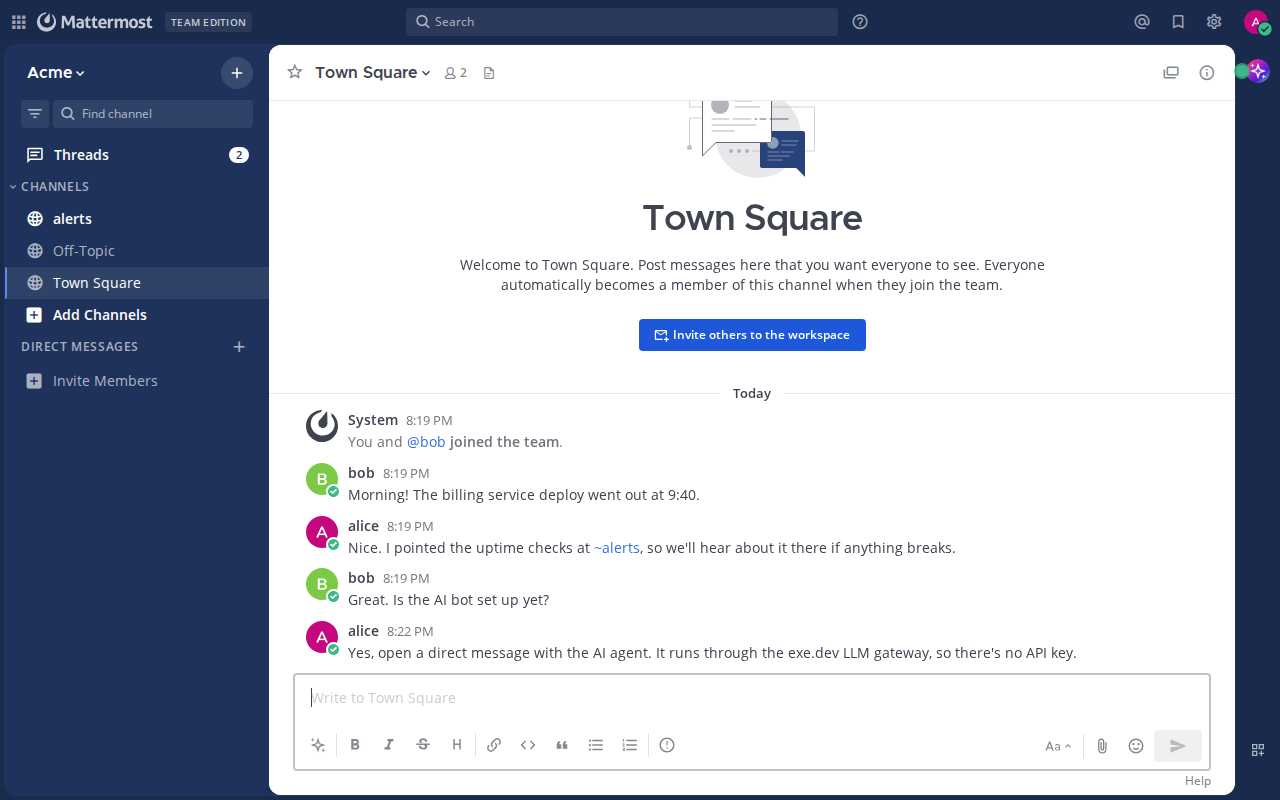
Messages appear for everyone the moment they're sent: Mattermost's live updates ride a websocket through exe.dev's proxy, which needs no setup.
Bring in your team#
On your computer, share the VM with a person or your whole team:
ssh exe.dev share add my-mattermost alice@example.com
ssh exe.dev share add my-mattermost team
Then, in Mattermost, open the team menu (the team name at the top left), choose Invite People, and copy the invite link. When Alice opens it, she signs in to exe.dev and lands in your team, with no Mattermost password to make up. Someone who signs in without an invite gets an account but no team, until you add them under System Console → User Management → Teams.
Tip
Removing someone? On your computer run
ssh exe.dev share remove my-mattermost alice@example.com, then deactivate them under System Console → User Management → Users.
Log out in Mattermost signs you straight back in while you're signed in to exe.dev. To switch accounts, sign out of exe.dev.
Add an AI agent#
Mattermost's Agents plugin comes with it, and exe.dev's LLM gateway speaks the OpenAI API, so the agent needs no key. Open System Console from the product menu (the grid at the top left), then Plugins → Agents → Add an AI Service:
- Service name:
exe.dev LLM gateway - Service type: OpenAI Compatible
- API URL:
https://llm.int.exe.xyz/v1 - API Key: anything, like
exe-llm-gateway; the gateway ignores it - Default model: type a model name, like
gpt-5.4-mini
Save, then follow Open Agents (or Agents in the product menu)
and Create agent: give it a display name, the username ai, and pick
the service you just added. Open a direct message with @ai and ask it
something.
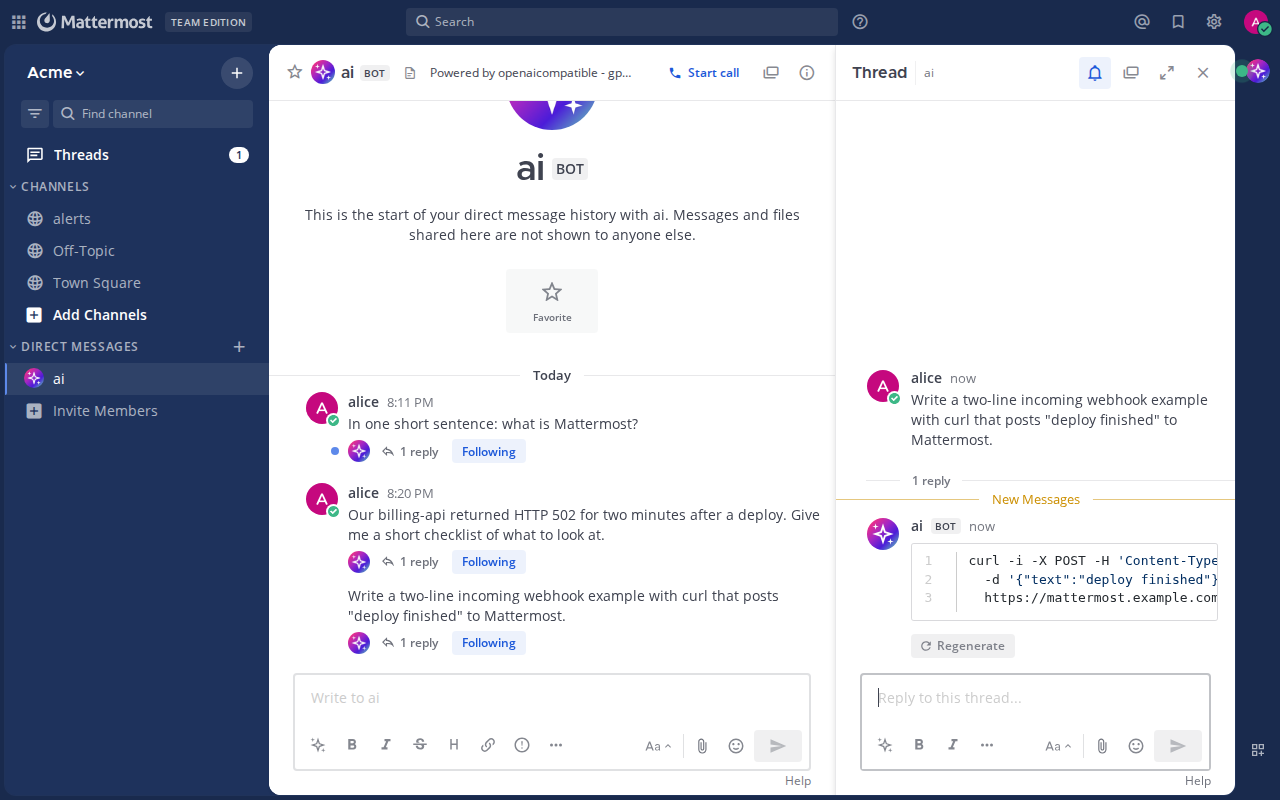
Any OpenAI model the gateway lists at llm.int.exe.xyz/models.json works; leave Use Responses API on. Team Edition allows one agent, and it answers in direct messages only. Mention it in a channel and it says channels need Mattermost Professional.
Post alerts from your other VMs#
An incoming webhook gives a channel an address that takes a JSON
message. Create a channel (say alerts), then from the product menu open
Integrations → Incoming Webhooks → Add Incoming Webhook, pick the
channel, and Save. Mattermost shows a URL ending in /hooks/ and an
ID. Try it on the Mattermost VM, with your ID:
curl -fsS localhost:8000/hooks/xxxxxxxxxxxxxxxxxxxxxxxxxx \
  -H 'Content-Type: application/json' \
  -d '{"username": "deploy-bot", "text": "Deployed **billing-api** v2.15.0"}'
curl prints ok and the message appears in the channel. text takes
Markdown; username and icon_url change who it appears to come from.
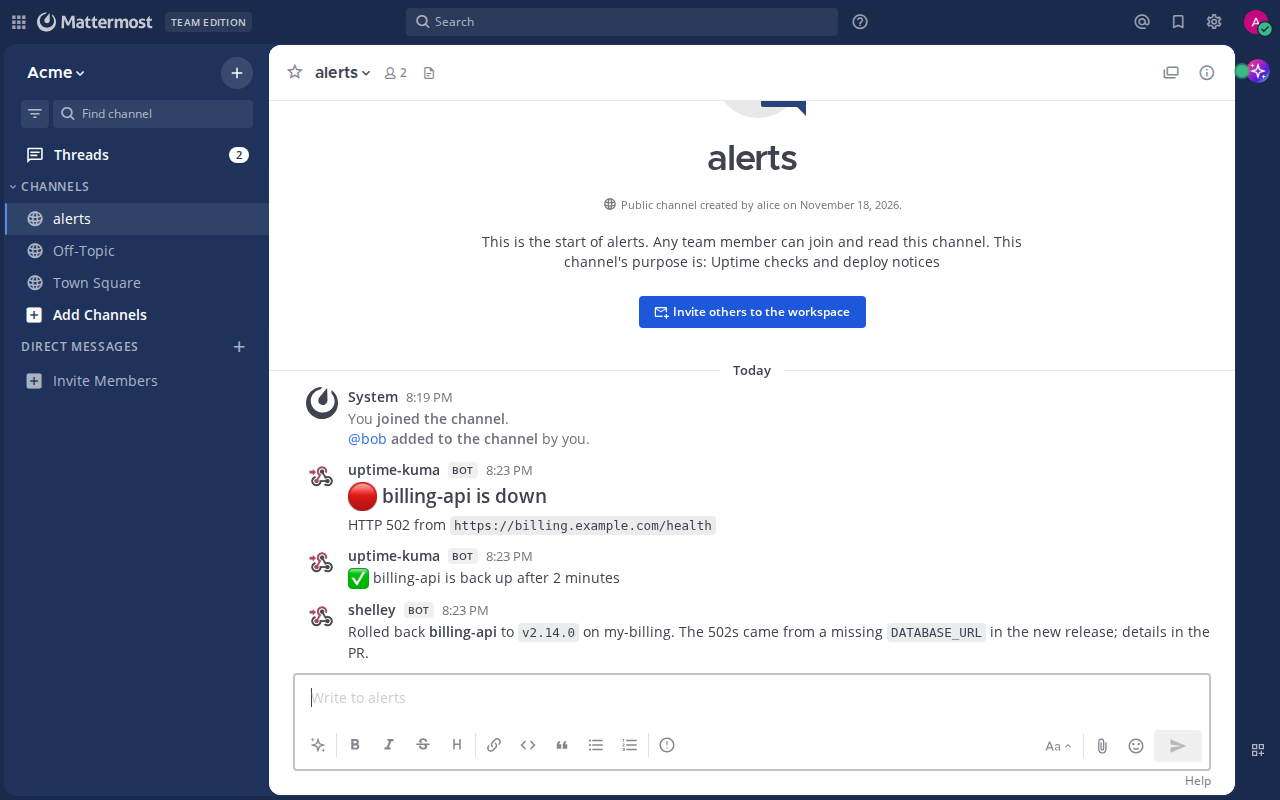
The VM is private, so another VM needs a way in. The keyless one is a VM-to-VM integration. On your computer:
ssh exe.dev integrations add http-proxy --name mattermost \
  --target https://my-mattermost.exe.xyz/ --peer --attach vm:my-app
Then my-app, and any agent on it, posts to
https://mattermost.int.exe.xyz/hooks/<id> with no credential on the VM.
For a machine outside exe.dev, make a token
with ssh exe.dev ssh-key generate-api-key --vm=my-mattermost --label=alerts
and send it as X-Exedev-Authorization: Bearer <token>.
Uptime Kuma has a Mattermost notification type that takes the webhook URL. To have Shelley report in, tell it the URL and when to post: "post to Mattermost when the deploy finishes, and say what changed".
Desktop and mobile apps#
The apps talk to the server directly, and exe.dev's proxy only lets them in once the VM is public. Before you make it public, decide who may sign in: by default, that's anyone who reaches the VM, which for a public VM means anyone with an exe.dev account. On the VM, list the people or whole domains allowed:
cd ~/mattermost
echo 'EXE_LOGIN_ALLOWED=@example.com bob@gmail.com' >> .env
docker compose up -d
Then, on your computer:
ssh exe.dev share set-public my-mattermost
nginx in front of Mattermost still turns away everyone who isn't signed in to exe.dev, unless they send the apps' secret; webhooks pass, since their IDs are a secret of their own. On the VM, print the secret:
grep MM_PREAUTH_SECRET ~/mattermost/.env
In the desktop app, add the server https://my-mattermost.exe.xyz; it
asks for an Authentication Secret. In the mobile app, tap Advanced
Options when adding the server and fill in Authentication secret.
This is Mattermost's
pre-authentication secret,
which current apps send with every request, and nginx checks. Then tap
exe.dev and sign in to exe.dev in the browser that opens.
Phones only get notifications while the app is closed if Mattermost has a
push service. For non-commercial use, Mattermost's free test service does
it: System Console → Environment → Push Notification Server, then
Use TPNS connection. A business needs a paid license for the hosted
one. To go back to private, run ssh exe.dev share set-private my-mattermost.
Rather keep the VM private? The other way is Tailscale on the VM and your devices, with Mattermost served on your tailnet instead. It's more setup, and this recipe doesn't cover it.
Email#
Invites, password resets, and missed-message notifications go through
smtp-relay, a small program next to Mattermost, out of exe.dev's
email gateway. exe.dev only delivers to you, your
team, and people you've shared the VM with who have signed in, and it
limits how much and how often. System Console → Environment → SMTP →
Test Connection sends you a test email; for anyone else it explains who
can receive.
Keep your data#
Messages live in PostgreSQL in ~/mattermost/postgres, uploaded files in
~/mattermost/mattermost/data, and nightly backups of both go to
~/mattermost/backups. Keep a copy off the VM. On your computer:
scp -r my-mattermost.exe.xyz:mattermost/backups .
Backups hold everything people wrote and the apps' secret, so keep them private. For updates or trouble, ask Shelley, or open the instructions below.
Prefer Zulip?#
Zulip threads every conversation by topic, which some teams love for async work. Its installer sets up a whole server (nginx, PostgreSQL, RabbitMQ, Redis, memcached), so give it a VM of its own with at least 2 GB of memory and follow its installation guide and reverse proxy notes: exe.dev's proxy provides HTTPS, so Zulip should serve plain HTTP on port 8000. We haven't written that up as a recipe; ask Shelley to try it.
The nuts and bolts#
Happy clicking Deploy? You can stop here. These are Shelley's setup steps and your maintenance reference.
Install by hand
Create a VM#
On your computer (pick another name if my-mattermost is taken):
ssh exe.dev new --name=my-mattermost
ssh my-mattermost.exe.xyz
The default VM suits a team. All remaining installation commands run on
the VM, as exedev.
Write the secrets#
This writes PostgreSQL's password, the apps' secret, and the secret Mattermost shares with exe-login to a file only you can read, once, and makes the folders Mattermost writes to. Its container runs as user 2000:
mkdir -p ~/mattermost && cd ~/mattermost
if [ ! -e .env ]; then
  touch .env && chmod 600 .env
  cat >> .env <<EOF
# Mattermost's address. Change it if you add a custom domain.
MM_SITEURL=https://$(hostname).exe.xyz
# PostgreSQL's password, used only inside Docker's network.
POSTGRES_PASSWORD=$(openssl rand -hex 24)
# The secret the desktop and mobile apps send when the VM is public.
MM_PREAUTH_SECRET=$(openssl rand -hex 24)
# Shared by Mattermost and exe-login, which signs people in with exe.dev.
EXE_LOGIN_SECRET=$(openssl rand -hex 24)
# Sender address on Mattermost's email.
MM_EMAIL_FROM=mattermost@$(hostname).exe.xyz
EOF
fi
mkdir -p postgres mattermost/config mattermost/data mattermost/logs \
  mattermost/plugins mattermost/client-plugins
sudo chown -R 2000:2000 mattermost
ls -l .env
ls should show -rw-------. For a custom domain,
change MM_SITEURL and run docker compose up -d.
Start Mattermost#
Three small files sit next to the Compose file:
- nginx.conf.template
passes websockets through and lets in only requests with exe.dev's login
header (
X-ExeDev-Email, which exe.dev's proxy sets and strips from anything else) or the apps' secret. Webhooks always pass. It sends people signed in to exe.dev, but not yet to Mattermost, to sign in with exe.dev. - exe-login.py is a short Python program, standard library only, that signs people in with exe.dev. Mattermost Team Edition can sign people in with GitLab, and this plays GitLab's part: it reads who is signed in from exe.dev's headers and vouches for them with one-time codes. Only its sign-in page is reachable through nginx; the rest stays on Docker's network.
- smtp-relay.py, shared with the Metabase recipe, is a short Python program that accepts Mattermost's email and sends it through exe.dev's email gateway.
Fetch them and write the Compose file:
cd ~/mattermost
curl -fsSLo nginx.conf.template https://exe-staging.dev/deploy/mattermost/nginx.conf.template
curl -fsSLo exe-login.py https://exe-staging.dev/deploy/mattermost/exe-login.py
curl -fsSLo smtp-relay.py https://exe.dev/deploy/metabase/smtp-relay.py
cat > compose.yaml <<'EOF'
# Mattermost Team Edition with PostgreSQL, behind nginx on port 8000,
# which exe.dev's HTTPS proxy serves at https://<vm>.exe.xyz/.
# Secrets come from .env in this directory.
name: mattermost

services:
  postgres:
    image: postgres:18-alpine
    restart: unless-stopped
    environment:
      POSTGRES_USER: mmuser
      POSTGRES_DB: mattermost
      POSTGRES_PASSWORD: ${POSTGRES_PASSWORD:?set in .env}
    volumes:
      - ./postgres:/var/lib/postgresql
    healthcheck:
      test: ["CMD-SHELL", "pg_isready -U mmuser -d mattermost"]
      interval: 10s
      timeout: 5s
      retries: 10

  mattermost:
    # 12.1 follows the newest 12.1.x patch release.
    image: mattermost/mattermost-team-edition:12.1
    restart: unless-stopped
    depends_on:
      postgres:
        condition: service_healthy
    environment:
      TZ: UTC
      MM_SQLSETTINGS_DRIVERNAME: postgres
      MM_SQLSETTINGS_DATASOURCE: postgres://mmuser:${POSTGRES_PASSWORD}@postgres:5432/mattermost?sslmode=disable&connect_timeout=10
      MM_SERVICESETTINGS_SITEURL: ${MM_SITEURL:?set in .env}
      # Let webhooks choose the name and picture they post with.
      MM_SERVICESETTINGS_ENABLEPOSTUSERNAMEOVERRIDE: "true"
      MM_SERVICESETTINGS_ENABLEPOSTICONOVERRIDE: "true"
      # Sign in with exe.dev: exe-login plays the part of GitLab.
      MM_GITLABSETTINGS_ENABLE: "true"
      MM_GITLABSETTINGS_ID: mattermost
      MM_GITLABSETTINGS_SECRET: ${EXE_LOGIN_SECRET:?set in .env}
      MM_GITLABSETTINGS_AUTHENDPOINT: ${MM_SITEURL}/exe-login/authorize
      MM_GITLABSETTINGS_TOKENENDPOINT: http://exe-login:8080/exe-login/token
      MM_GITLABSETTINGS_USERAPIENDPOINT: http://exe-login:8080/exe-login/user
      MM_SERVICESETTINGS_ALLOWEDUNTRUSTEDINTERNALCONNECTIONS: exe-login
      # Email through exe.dev's email gateway, by way of smtp-relay.
      MM_EMAILSETTINGS_SENDEMAILNOTIFICATIONS: "true"
      MM_EMAILSETTINGS_SMTPSERVER: smtp-relay
      MM_EMAILSETTINGS_SMTPPORT: "2525"
      MM_EMAILSETTINGS_ENABLESMTPAUTH: "false"
      MM_EMAILSETTINGS_CONNECTIONSECURITY: ""
      MM_EMAILSETTINGS_FEEDBACKNAME: Mattermost
      MM_EMAILSETTINGS_FEEDBACKEMAIL: ${MM_EMAIL_FROM}
      MM_EMAILSETTINGS_ENABLEPREVIEWMODEBANNER: "false"
    volumes:
      - ./mattermost/config:/mattermost/config
      - ./mattermost/data:/mattermost/data
      - ./mattermost/logs:/mattermost/logs
      - ./mattermost/plugins:/mattermost/plugins
      - ./mattermost/client-plugins:/mattermost/client/plugins

  nginx:
    image: nginx:1.30-alpine
    restart: unless-stopped
    depends_on:
      mattermost:
        condition: service_healthy
      exe-login:
        condition: service_started
    ports:
      - "8000:8000"
    environment:
      MM_PREAUTH_SECRET: ${MM_PREAUTH_SECRET:?set in .env}
    volumes:
      - ./nginx.conf.template:/etc/nginx/templates/default.conf.template:ro

  exe-login:
    image: python:3.13-alpine
    restart: unless-stopped
    command: ["python3", "-u", "/exe-login.py"]
    environment:
      EXE_LOGIN_SECRET: ${EXE_LOGIN_SECRET:?set in .env}
      MM_SITEURL: ${MM_SITEURL}
      EXE_LOGIN_ALLOWED: ${EXE_LOGIN_ALLOWED:-}
    volumes:
      - ./exe-login.py:/exe-login.py:ro

  smtp-relay:
    image: python:3.13-alpine
    restart: unless-stopped
    command: ["python3", "-u", "/smtp-relay.py"]
    environment:
      SMTP_RELAY_LISTEN: 0.0.0.0
    volumes:
      - ./smtp-relay.py:/smtp-relay.py:ro
EOF
docker compose config --quiet && echo compose ok
Settings set in compose.yaml show as locked in the System Console;
everything else you change there is saved in
~/mattermost/mattermost/config/config.json.
Enable Docker at boot, download the images (about 1.8 GB), and start. Mattermost's first start takes under a minute while it sets up its database:
sudo systemctl enable --now docker.service
docker compose pull -q
docker compose up -d --wait --wait-timeout 300
curl -fsS localhost:8000/api/v4/system/ping -H 'X-ExeDev-Email: check@localhost'; echo
curl -s -o /dev/null -w '%{http_code}\n' localhost:8000/api/v4/system/ping
curl -s -o /dev/null -w '%{redirect_url}\n' localhost:8000/ -H 'X-ExeDev-Email: check@localhost'
printf 'Mattermost: https://%s.exe.xyz/\n' "$(hostname)"
The first curl should print JSON with "status":"OK", the second
403: nginx is letting in only exe.dev logins and the apps. The third
prints an address ending in /oauth/gitlab/login, the start of signing
in with exe.dev. The
HTTPS proxy adds HTTPS and exe.dev login in front of port
8000.
Warning
The first person to sign in becomes Mattermost's system admin. The VM is private, so that's you; open it before you share it.
Set up nightly backups#
This dumps Mattermost's database while it runs, checks the dump, saves it
with the uploaded files, config.json, and the setup files, and keeps two
weeks of backups. It runs as root to read Mattermost's files:
cd ~/mattermost
cat > backup.sh <<'EOF'
#!/bin/sh
# Back up Mattermost: its database, config.json, uploaded files, and the
# setup files. Runs as root, since Mattermost's files belong to its
# container's user; the archives belong to whoever owns this directory.
set -eu
[ "$(id -u)" = 0 ] || exec sudo "$0" "$@"
umask 077
cd "$(dirname "$0")"
owner=$(stat -c %u:%g .)
mkdir -p backups
chown "$owner" backups
chmod 700 backups
out="backups/mattermost-$(date +%Y%m%d-%H%M%S).tar.gz"
work=$(mktemp -d)
trap 'rm -rf "$work"' EXIT
docker compose exec -T postgres pg_dump -U mmuser -d mattermost -Fc < /dev/null > "$work/mattermost.dump"
docker compose exec -T postgres pg_restore --list < "$work/mattermost.dump" > /dev/null
cp .env compose.yaml nginx.conf.template "$work/"
tar -C mattermost -cf "$work/files.tar" config data
tar -C "$work" -czf "$out.tmp" .
chown "$owner" "$out.tmp"
mv "$out.tmp" "$out"
find backups -name 'mattermost-*.tar.gz' -mtime +14 -delete
EOF
chmod +x backup.sh

sudo tee /etc/systemd/system/mattermost-backup.service >/dev/null <<'EOF'
[Unit]
Description=Back up Mattermost
After=docker.service

[Service]
Type=oneshot
ExecStart=/home/exedev/mattermost/backup.sh
EOF
sudo tee /etc/systemd/system/mattermost-backup.timer >/dev/null <<'EOF'
[Unit]
Description=Back up Mattermost nightly

[Timer]
OnCalendar=daily
Persistent=true

[Install]
WantedBy=timers.target
EOF
sudo systemctl daemon-reload
sudo systemctl enable --now mattermost-backup.timer
sudo systemctl start mattermost-backup.service
systemctl list-timers mattermost-backup.timer
tar -tzf backups/mattermost-*.tar.gz
The timer should list its next run, and the archive should hold
mattermost.dump, files.tar, .env, compose.yaml, and
nginx.conf.template. You're ready: sign in and try the
walkthrough above.
Back up and restore
To take an extra backup, on the VM:
cd ~/mattermost
./backup.sh
Restore#
Pick an archive in backups/ and substitute its filename below. On a new
VM, run Install by hand first and copy your archive into that folder.
These commands run on the VM. They keep this VM's .env, and set the
current database and files aside rather than delete them:
cd ~/mattermost
backup=backups/mattermost-YYYYMMDD-HHMMSS.tar.gz
stamp=$(date +%s)
work=$(mktemp -d)
tar -C "$work" -xzf "$backup" &&
docker compose exec -T postgres pg_restore --list < "$work/mattermost.dump" >/dev/null &&
sudo systemctl stop mattermost-backup.timer mattermost-backup.service &&
docker compose stop nginx mattermost &&
sudo mv mattermost/config "mattermost/config.before-restore-$stamp" &&
sudo mv mattermost/data "mattermost/data.before-restore-$stamp" &&
sudo tar -C mattermost -xpf "$work/files.tar" &&
docker compose exec -T postgres psql -U mmuser -d postgres \
  -c "ALTER DATABASE mattermost RENAME TO mattermost_before_restore_$stamp" \
  -c "CREATE DATABASE mattermost" &&
docker compose exec -T postgres pg_restore -U mmuser -d mattermost --exit-on-error < "$work/mattermost.dump" &&
docker compose up -d --wait &&
sudo systemctl start mattermost-backup.timer &&
rm -rf "$work"
Sign in and check your channels and a file or two. Once you're happy,
remove what was set aside: sudo rm -rf mattermost/*.before-restore-*,
then list the old database with
docker compose exec postgres psql -U mmuser -d postgres -c '\l' and drop
it with docker compose exec postgres dropdb -U mmuser mattermost_before_restore_....
Update
The 12.1 tag gets each 12.1 patch release. On the VM, back up first,
then pull and restart; Mattermost updates its database on start:
cd ~/mattermost
./backup.sh && docker compose pull && docker compose up -d --wait --wait-timeout 300
For a new version, read Mattermost's
important upgrade notes,
change the tag in compose.yaml (to 12.2, say), and run the same
command. To undo an update, put the old tag back and
restore the backup you took first. The Agents
plugin updates with Mattermost.
Something's not happy?
Start with the logs. On the VM:
cd ~/mattermost
docker compose ps
docker compose logs --tail=50 mattermost nginx
- 502 right after a start? Mattermost takes up to a minute to boot.
- Down after a reboot? Run
sudo systemctl enable --now docker.service. permission deniedin the logs? The folders under~/mattermost/mattermostmust belong to user 2000:sudo chown -R 2000:2000 ~/mattermost/mattermost.- The app says the secret is wrong? Check it against
.env, and that the VM is public. After changing the secret, rundocker compose up -d --force-recreate nginx. - No email? Check
docker compose logs smtp-relay. A recipient outside your team must accept the VM share and sign in first. - The agent doesn't answer? Check that
curl -s https://llm.int.exe.xyz/v1/modelsworks on the VM; your LLM integration must be attached to it. In a channel, Team Edition's agent only points you to direct messages. - "may not sign in to this Mattermost"? Their address isn't in
EXE_LOGIN_ALLOWEDin.env; add it and rundocker compose up -d. - Sign-in fails with an error page? Check
docker compose logs exe-login mattermost. After a custom domain, both need the newMM_SITEURL: rundocker compose up -d. - Need an admin? On the VM,
docker compose exec mattermost mmctl --local roles system-admin alicemakes alice one.
Frequently asked questions#
Is Mattermost free?
Team Edition is, under the MIT license, with no user or message limits. You pay for your VM plan, and the AI agent uses your exe.dev LLM allocation. Mattermost sells Professional and Enterprise licenses for SSO, compliance, and AI agents in channels.
Team Edition or Mattermost Entry?
Mattermost has two free builds. Team Edition, used here, is open source and complete for small teams. The Enterprise image without a license runs as Mattermost Entry: paid features unlocked, but only the newest 10,000 messages can be read or searched, and more limits are announced. For a team that keeps talking, Team Edition is the safer choice.
How does signing in with exe.dev work?
Team Edition can sign people in with GitLab. A short program on the VM, exe-login.py, plays GitLab's part: exe.dev's proxy tells it who is signed in, and it vouches for them to Mattermost. Accounts are matched by exe.dev user, and nobody needs a Mattermost password. Team Edition hides the GitLab button, so nginx brings it back, labelled exe.dev.
Do the desktop and mobile apps work?
Once you make the VM public, yes: exe.dev's proxy can't tell an app who you are, so the apps send a secret to get through, then sign in with the exe.dev button. See Desktop and mobile apps. Phone notifications need a push service, which Mattermost offers free for non-commercial use.
Do voice and video calls work?
Not through exe.dev's proxy, which carries HTTPS and websockets only. Mattermost's Calls plugin sends audio and video over its own port (8443), so a call can't connect. Turn it off under System Console → Plugins → Calls to hide the button.
How big a VM do I need?
Small. Mattermost and PostgreSQL use about 500 MB of memory for a small team, and the images take 1.8 GB of disk. The default VM is plenty; watch the disk if people share big files, and grow it with ssh exe.dev resize.
Does my data leave the VM?
Messages and files stay on the VM. What you send the AI agent goes to the model provider through exe.dev's gateway, emails go out through exe.dev's email gateway, and if you turn on push notifications, they pass through Mattermost's push service.
Updated Nov 18, 2026 · tested end to end Nov 18, 2026 · Markdown · manifest.json · Something wrong? Tell us